
You can connect your Square Up account to the Commerce app in Invision Community! If you don't have an account yet, you can create one using this link: https://squareup.com/signup?country_code=us&lang_code=en.
Square Up - accept debit and credit card payments on your community with online payment solutions from Square.
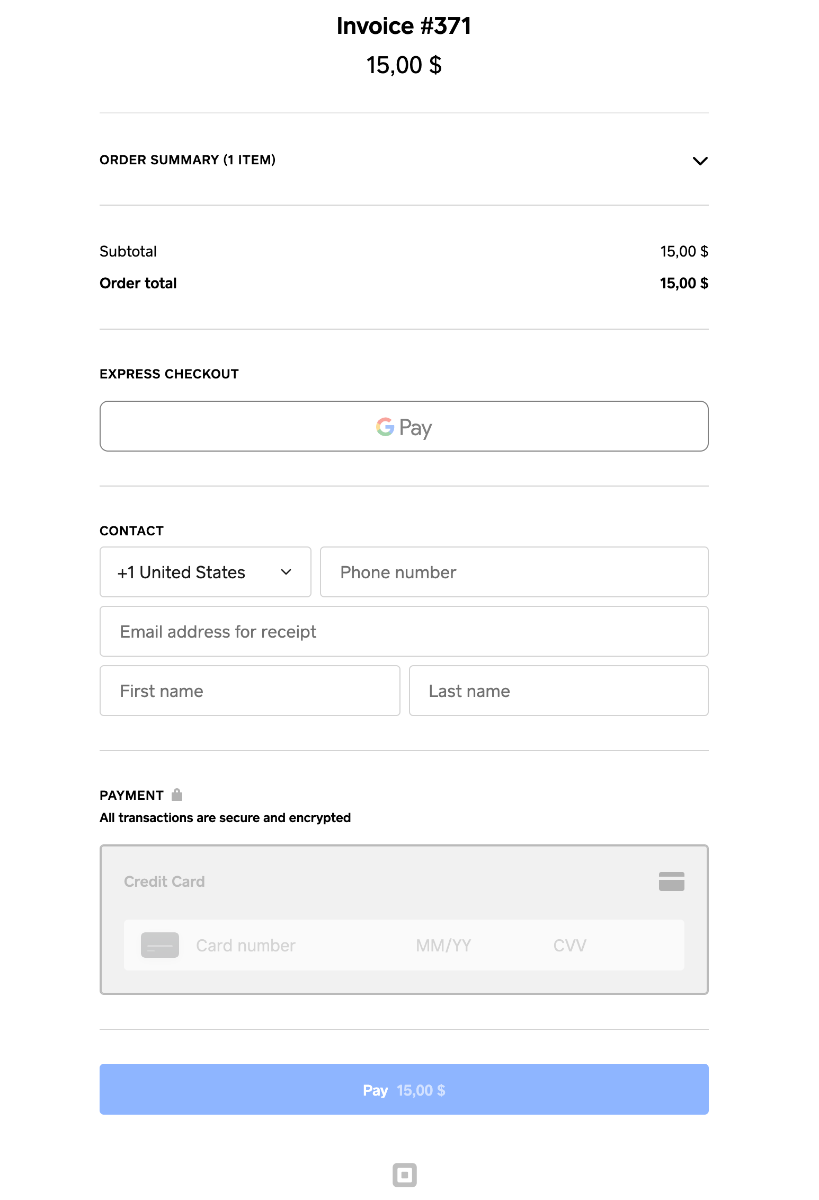
Square Up Payment form
Application installation
For the gateway to work correctly, you will need to install the application SquareUp Payment Gateway via Admin CP of your community. Now you need to go to the menu Commerce > Payments > Settings > Payment Methods tab > Create new button and select Square Up Payment Gateway. In the next step, you will need to enter your Square Up application and webhook details.
Create an application
Go to https://developer.squareup.com/apps and create a new app, after that you will have access to Application ID and Access token options, you will need them to configure the gateway later.
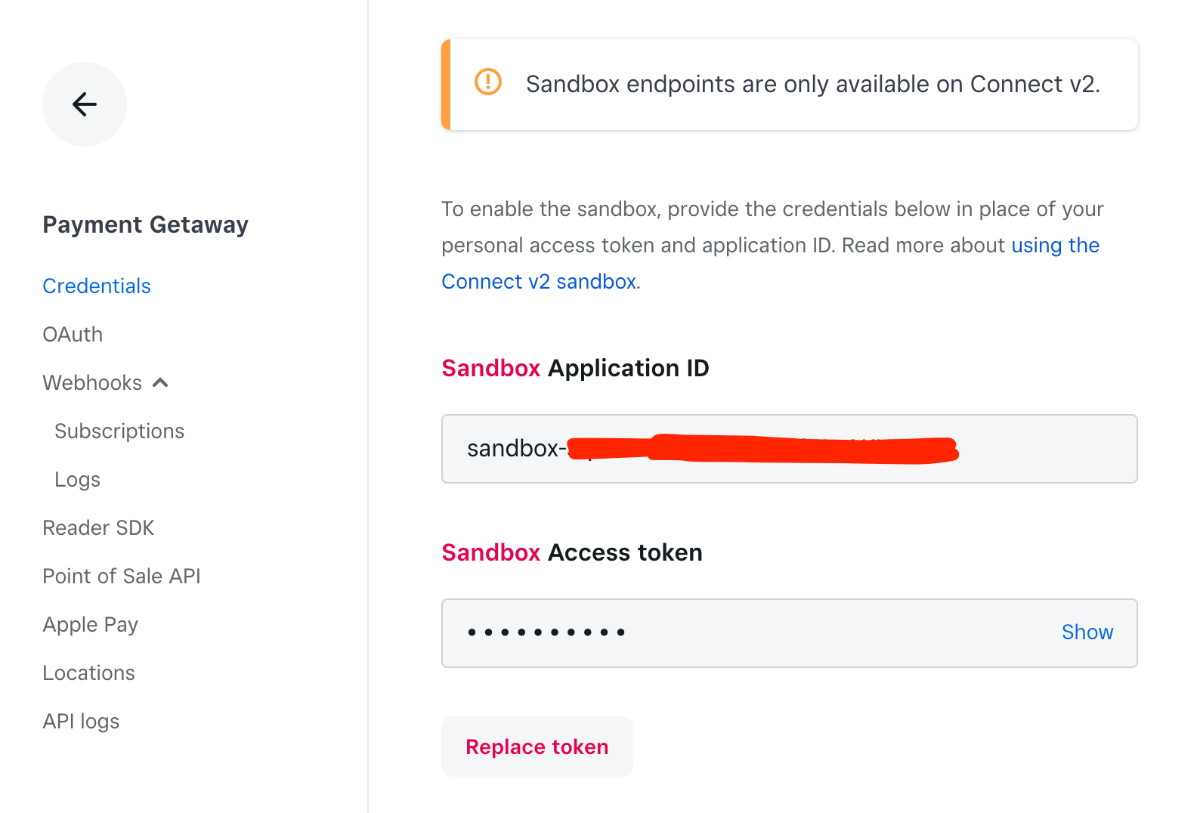
Here you can switch to Production mode or Sandbox mode!
Webhook setup
Select your Square Up application and go to menu Webhooks > Subscriptions > click to button Add subscription and fill in the fields:
- URL: https://YOURCOMMUNITY.COM/?app=squareup&module=system&controller=webhook
- API version: 2022-10-19
- Events: payment.updated
Save webhook subscription! After saving, you can get a Signature key that you need to specify in the integration settings:
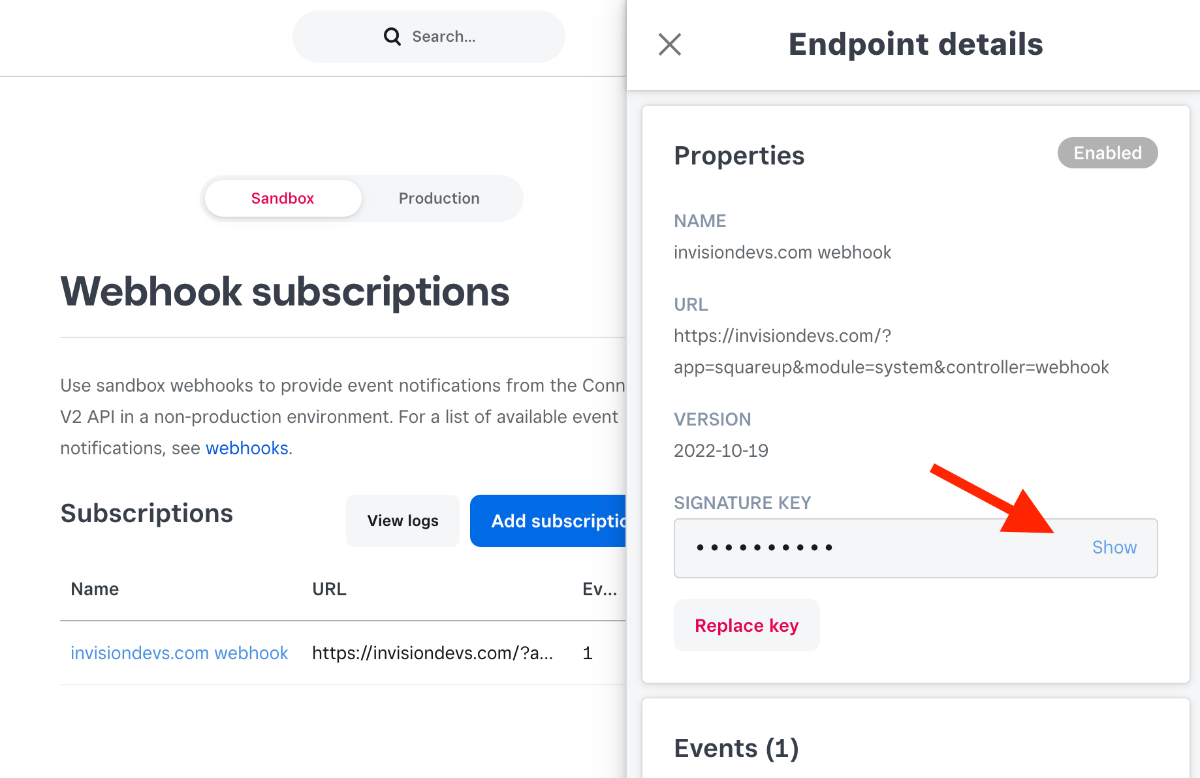
After that, return to step 1 and enter all the required data, after which the integration will be completed.
Recommended Comments