
Skip to content
View in the app

A better way to browse. Learn more.

Invision Developers

A full-screen app on your home screen with push notifications, badges and more.

To install this app on iOS and iPadOS
  1. Tap the Share icon in Safari
  2. Scroll the menu and tap Add to Home Screen.
  3. Tap Add in the top-right corner.
To install this app on Android
  1. Tap the 3-dot menu (⋮) in the top-right corner of the browser.
  2. Tap Add to Home screen or Install app.
  3. Confirm by tapping Install.
New Invision Marketplace

Hover Cards 1.0.0

(0 reviews)

2 Screenshots

Compatibility: Invision Community 5.1.

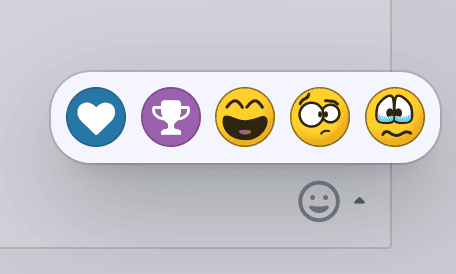
Hover Cards lets members open profile cards and reaction menus by hovering their mouse over them.

It uses Invision Community’s native cards and menus, preserving their familiar appearance, content, and animations.

Features

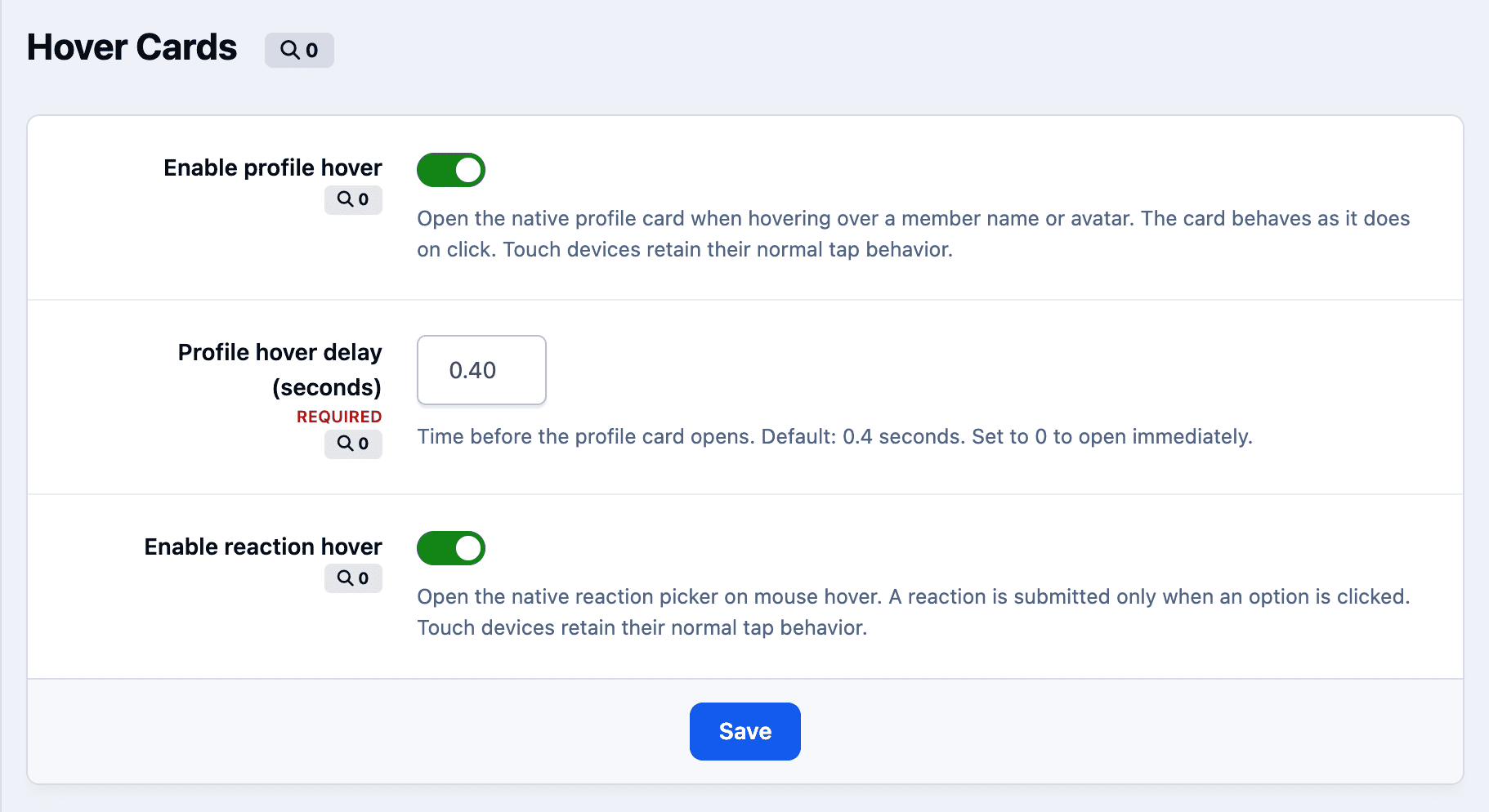
  • Profile cards on hover — preview a member’s profile by hovering over their name or avatar.

  • Adjustable delay — choose how quickly profile cards open. The default is 0.4 seconds; set it to zero for instant opening.

  • Reaction menus on hover — reveal available reactions without an extra click. Selecting a reaction still requires a click.

  • Independent controls — enable profile hover, reaction hover, or both.

  • AJAX support — works with dynamically loaded community content.

  • Touch support — standard tap behavior is preserved on phones and tablets.

User Feedback

You may only provide a review once you have downloaded the file.

There are no reviews to display.

Account

Navigation

Search

Search

Configure browser push notifications

Chrome (Android)
  1. Tap the lock icon next to the address bar.
  2. Tap Permissions → Notifications.
  3. Adjust your preference.
Chrome (Desktop)
  1. Click the padlock icon in the address bar.
  2. Select Site settings.
  3. Find Notifications and adjust your preference.