Crypoverse
Members
-
Joined
-
Last visited
-
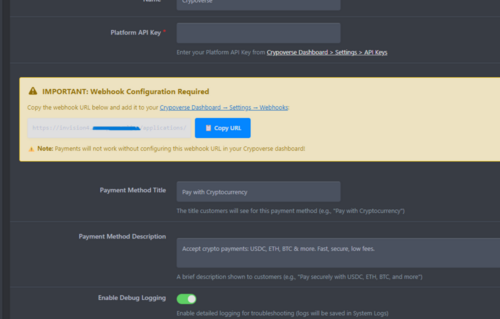 🚀 Crypoverse: The Definitive Crypto Gateway for Invision CommunityTransform your community into a global powerhouse. Accept Bitcoin and Altcoins with zero merchant fees, automated liquidity, and subsidized gas. Stop losing members to complex payment flows and high transaction costs. Crypoverse is the premium, high-performance payment gateway built specifically for Invision Community (IPS 4.x/Nexus). It offers a "Zero-Cost" merchant model where you keep 100% of your earnings while your customers enjoy the fastest checkout experience in the industry. 💎 Why Choose Crypoverse?Most gateways eat into your margins with hidden gas fees, withdrawal delays, and fixed monthly costs. Crypoverse flips the script: Merchant Pays $0: You never pay a dime for accepting payments. All fees are handled by the purchaser. Subsidized Gas & Network Fees: Unlike other processors that pass on heavy Ethereum or Bitcoin network fees, Crypoverse subsidizes gas costs, ensuring your customers pay significantly less. Instant Settlement: No waiting days for "clearing." Funds represent real-time value. 0.5% Flexible Rates: We offer the most competitive, flexible fee structure in the market, starting as low as 0.5%. ⚡ The "Set and Forget" PowerhouseWe don't just process payments; we manage your crypto workflow so you don't have to. 🔄 Auto-ConvertVolatility is the enemy of business. With Auto-Convert, incoming volatile assets (like BTC or SOL) are instantly swapped into stablecoins or your currency of choice at the moment of transaction. Lock in your profit immediately. 📤 Auto-SendSecurity is paramount. Auto-Send allows you to define an external cold wallet or exchange address. The moment a payment is confirmed, Crypoverse forwards it to your private custody. 🔗 The "Bridge" Effect (Auto-Convert + Auto-Send)This is the ultimate merchant workflow. When combined, you create a seamless bridge: Customer pays in BTC. Crypoverse instantly converts it to USDT (locking the price). Crypoverse automatically sends that USDT to your private hardware wallet. The Benefit: You get the stability of fiat/stablecoins and the security of cold storage without ever having to log in to a dashboard. It’s automated wealth management. 🌍 Supported Networks & CoinsWe support the major chains that matter, ensuring your customers always have a way to pay: Bitcoin (BTC) Litecoin (LTC) Ethereum (ETH) Solana (SOL) Tron (TRX) Binance Smart Chain (BNB) Polygon (POL/MATIC) 📊 How We CompareFeature Crypoverse Standard Gateways Merchant Fee 0% 1% - 3% Gas/Network Fees Subsidized Paid by Merchant/User Withdrawal Fees None High Fixed Fees Direct Withdraw ✅ Yes ❌ Often Delayed Setup Cost Free Often Paid Support 24/7 Priority Ticket-based 🛠️ Developer & Admin FeaturesUniversal Compatibility: Native support for Invision Community 4.6, 4.7, and beyond. Robust Webhooks: Real-time transaction tracking with HMAC-SHA256 security. Premium Debugging: Enhanced logging captures every detail of the payment lifecycle. Multilingual Ready: Ready to serve your community in any language. 📞 24/7 Support & ReliabilityWe pride ourselves on being available when you need us. Whether it's a configuration question or a custom integration request, our team is standing by 24/7 to ensure your commerce never sleeps. Ready to start? Download the plugin, enter your API key, and begin accepting the future of currency today. Visit Crypoverse.com for more information and to get your API keys.Free