
Skip to content
View in the app

A better way to browse. Learn more.

Invision Developers

A full-screen app on your home screen with push notifications, badges and more.

To install this app on iOS and iPadOS
  1. Tap the Share icon in Safari
  2. Scroll the menu and tap Add to Home Screen.
  3. Tap Add in the top-right corner.
To install this app on Android
  1. Tap the 3-dot menu (⋮) in the top-right corner of the browser.
  2. Tap Add to Home screen or Install app.
  3. Confirm by tapping Install.
New Invision Marketplace

HTML Editor 1.0.7

(1 review)

5 Screenshots

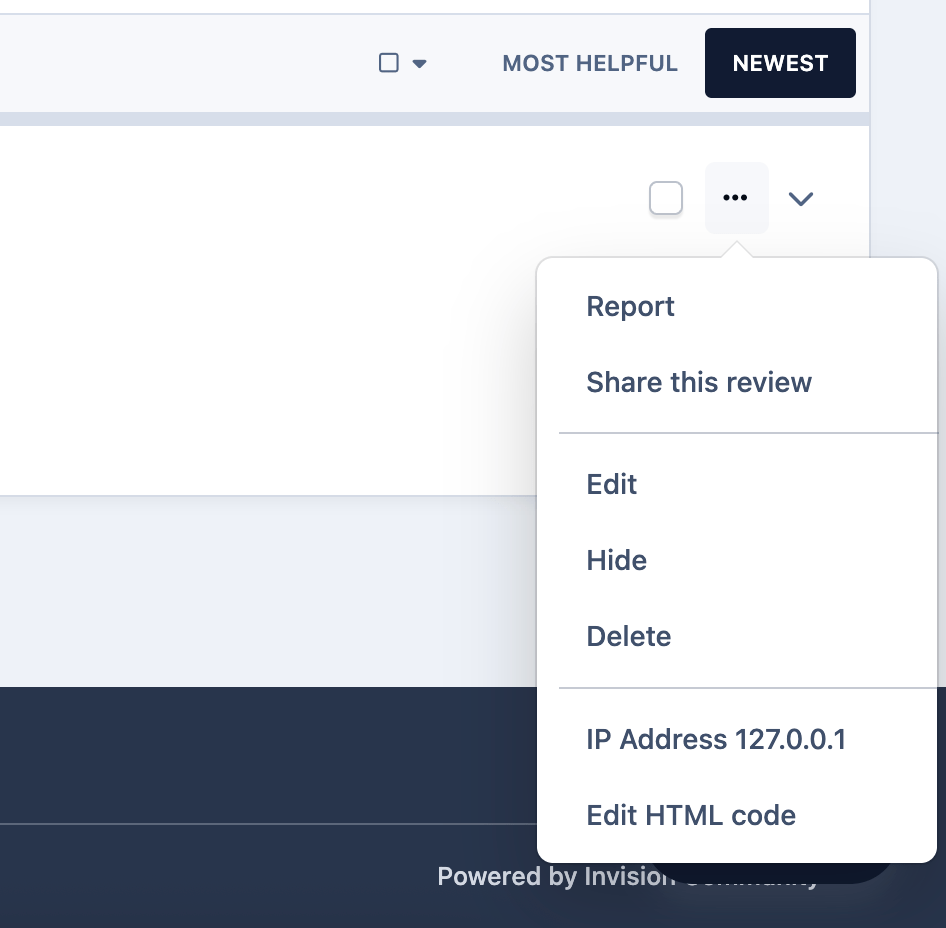
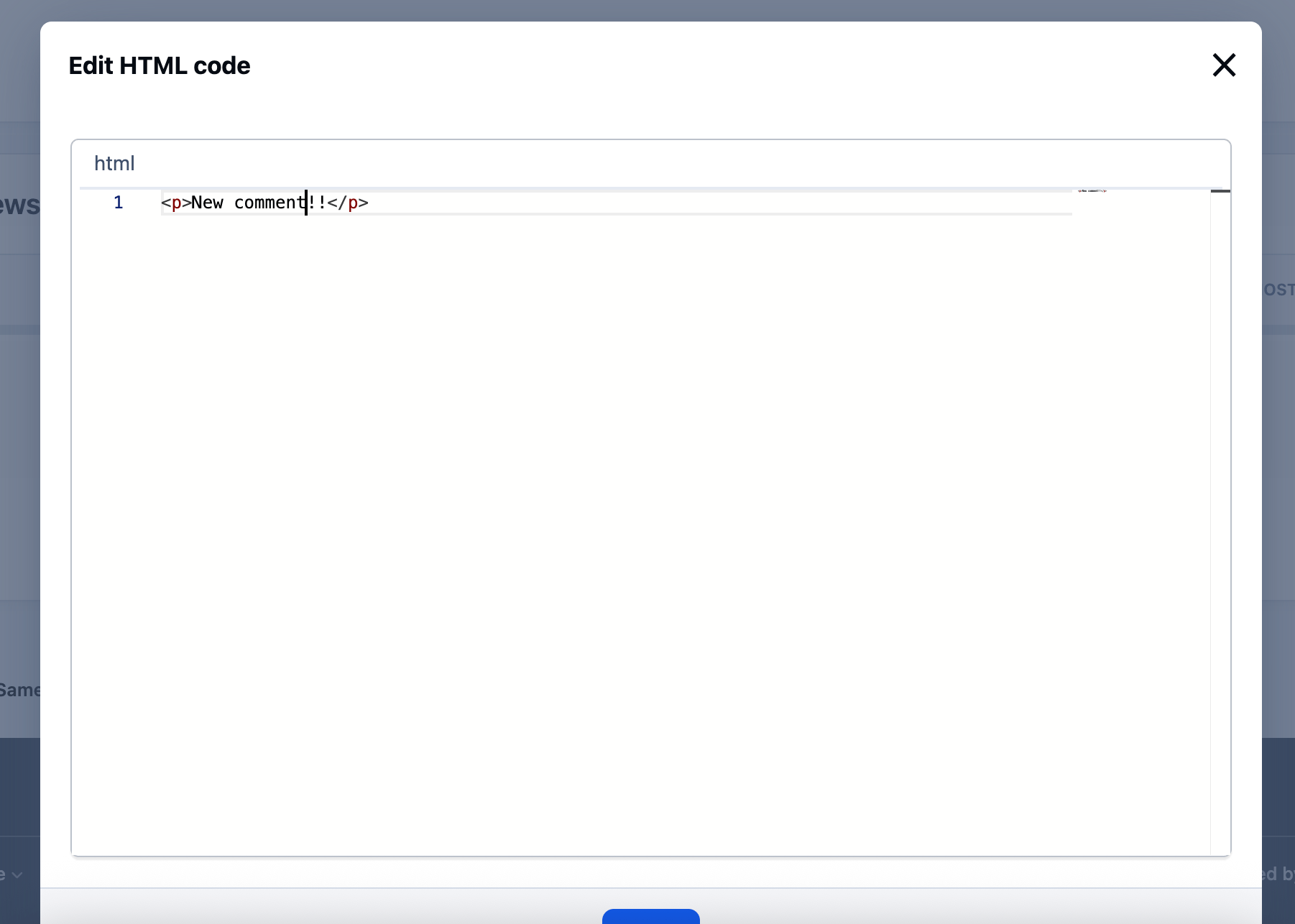
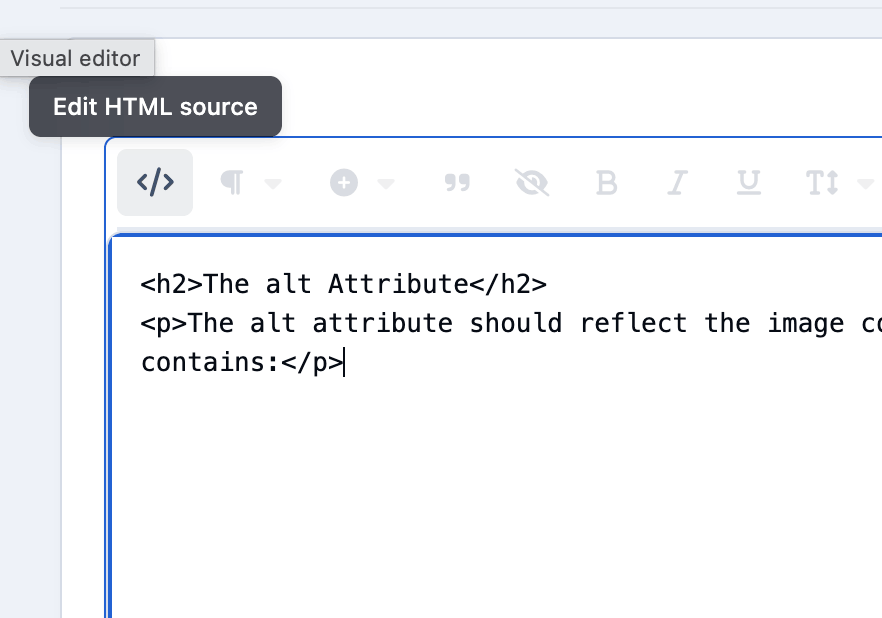
HTML Editor - application allows you to change the HTML code of messages and reviews. Created to replace the outdated Edit HTML of posts.

Possibilities:

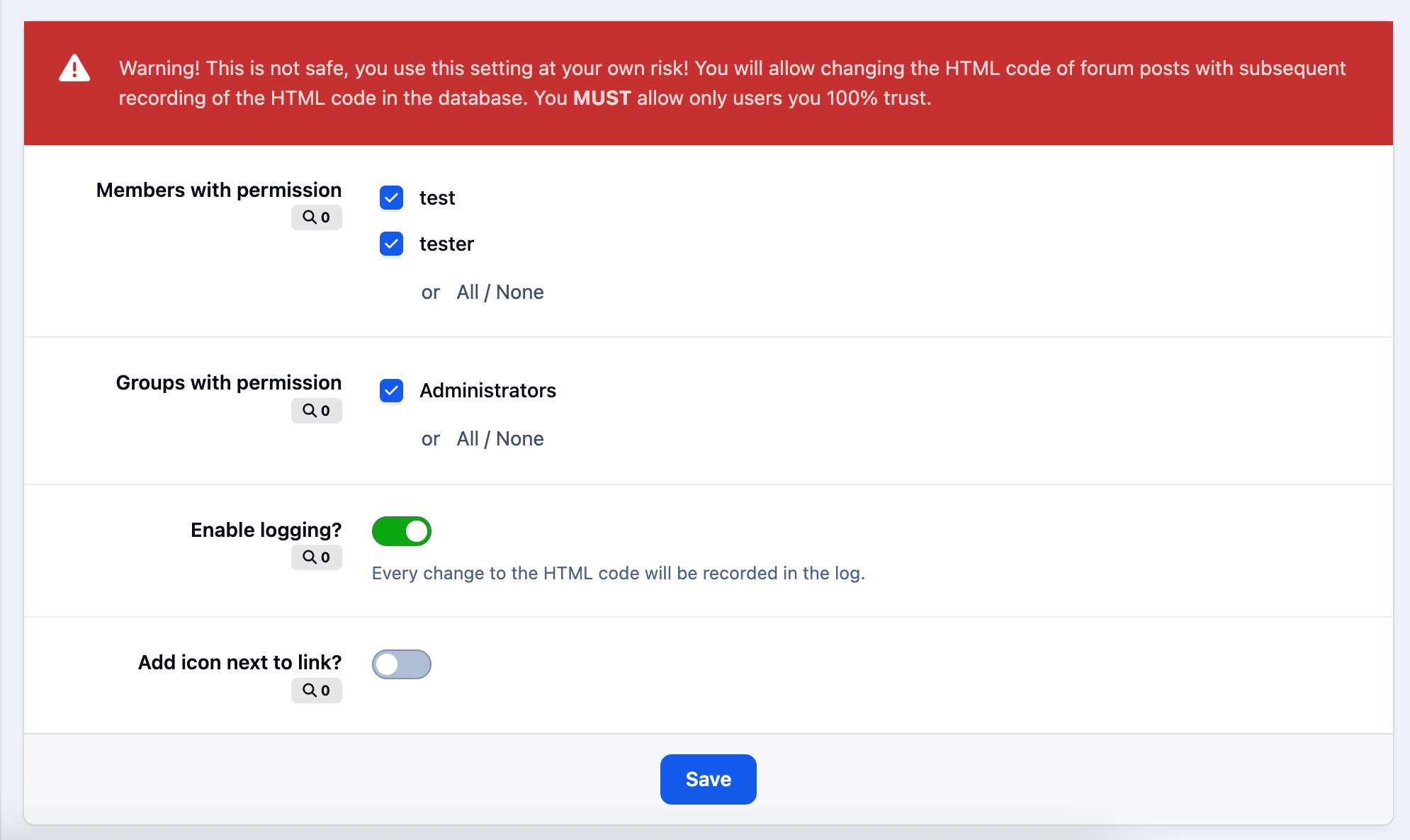
  • Select users/groups (only admins) that can change HTML code.

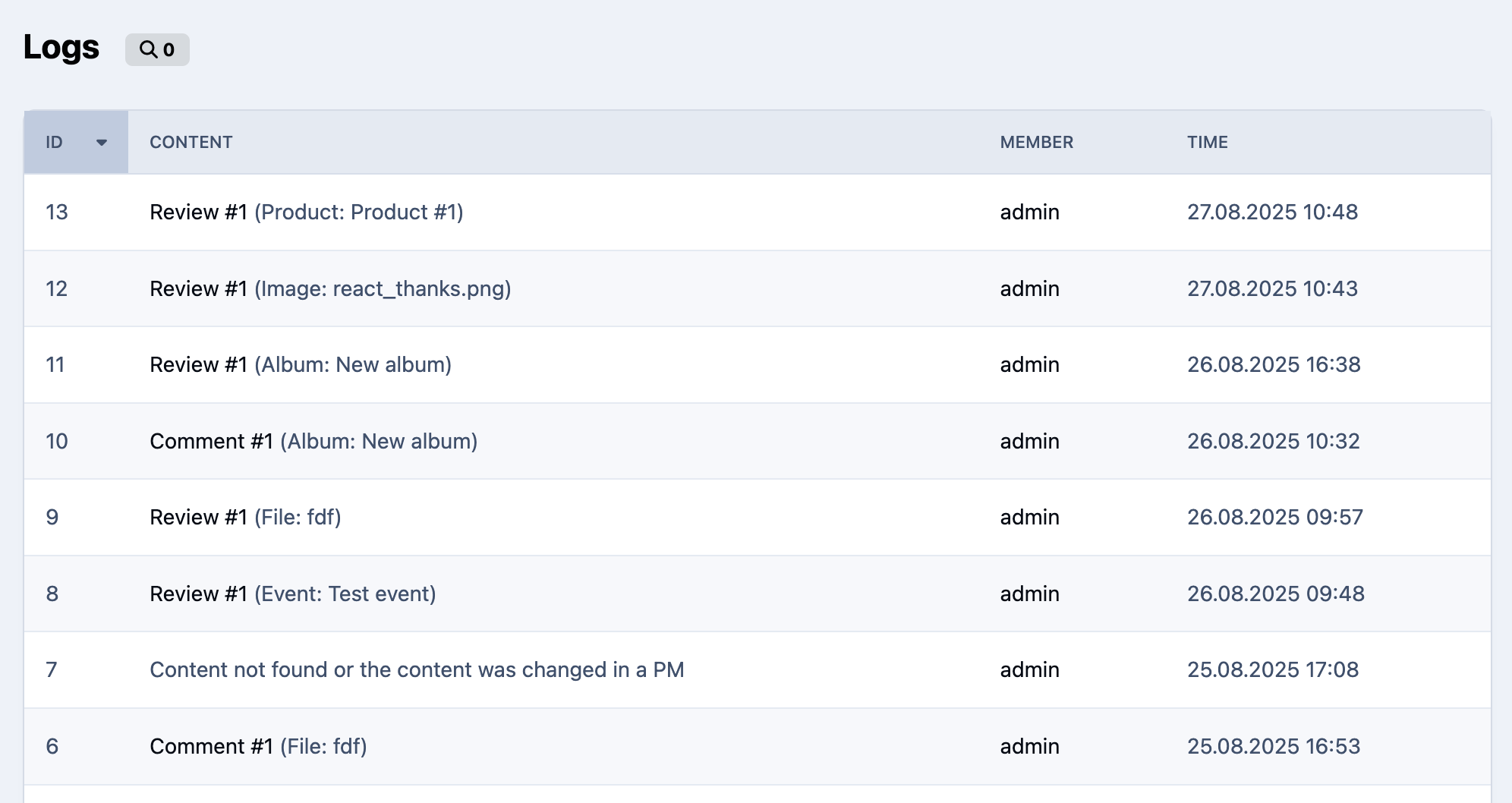
  • Enable/disable logging.

  • Add/remove icon next to the link.

Supports applications:

  • Pages

  • Forums

  • Commerce

  • Events

  • Blogs

  • Personal Messages

  • Gallery

  • Downloads

What's New in Version 1.0.7

Released

Fixed Form required error

User Feedback

Recommended Comments

YourSharona

Members

Question(s) here if you don't mind.

I see that this has been downloaded 67 times. There are no comments and only one review. I would like to utilize this app but I am concerned that it will not be fully compatible with the suite, as they removed the ability for some reason. I do not want it to break anything I have, thus my concern.

Can anyone confirm they actually use this to an extent and that it works fine with no problems in other areas of the software as a result?

Secondly, in v5, I can utilize custom blocks constructed of html. Is it possible to insert a custom html block with the functionality of this app and have it work as a custom block in the posted content area?

Thanks!

Join the conversation

You can post now and register later. If you have an account, sign in now to post with your account.
Note: Your post will require moderator approval before it will be visible.

Guest
Add a comment...

Account

Navigation

Search

Search

Configure browser push notifications

Chrome (Android)
  1. Tap the lock icon next to the address bar.
  2. Tap Permissions → Notifications.
  3. Adjust your preference.
Chrome (Desktop)
  1. Click the padlock icon in the address bar.
  2. Select Site settings.
  3. Find Notifications and adjust your preference.