Python
Members
-
Joined
-
Last visited
Everything posted by Python
-
Ваш сообщение в теме был одобрен. Поправьте.
-
I'm sorry, have a nice day.
-
-
Dear Cyril, please tell me how to make a beautiful minimalistic postContainer like you do.☺️ @Kirill Gromov ❤️

-
Sorry please the whole topic I can't provide, can I know which specific template is responsible for the form? And I will send it to you here.
-
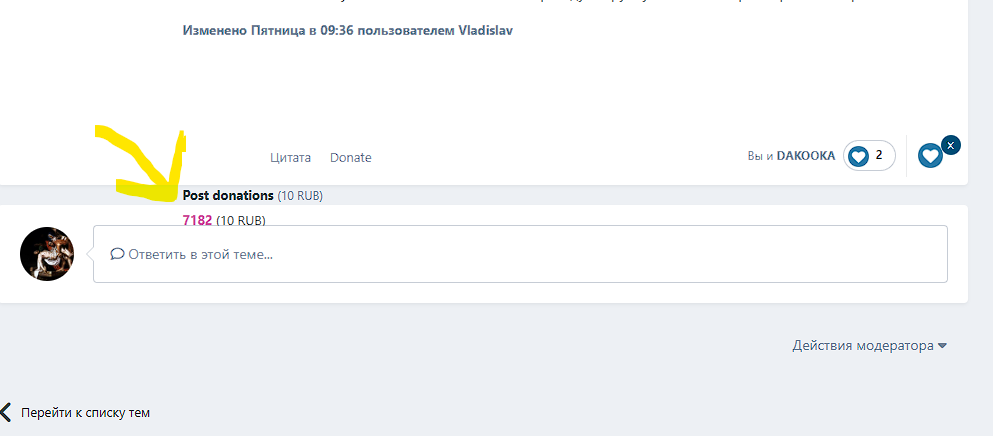
Why is there no way to fix it? I can't figure out where to find the code
-
I don't know which template is responsible for this
-
Up.
-
What does this error mean? Access token Error
-
I've already reviewed all the templates, I can't figure out what the problem could be.....
-
Tried on the default theme everything works, that's what I want to understand what the problem is in my theme.
-
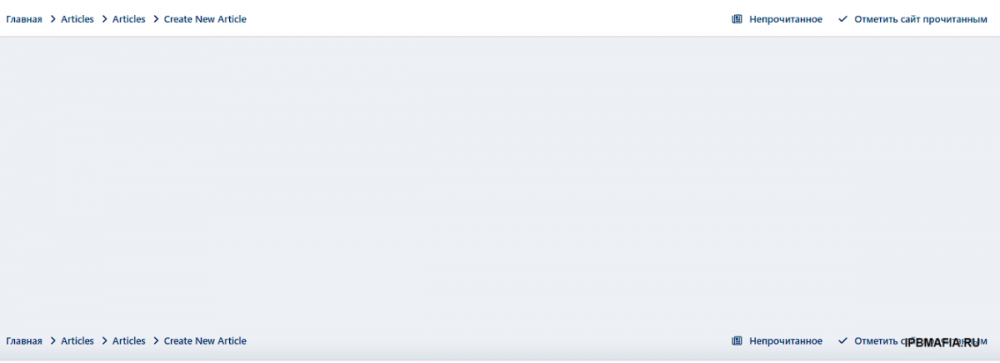
Good day dear users, faced with such a problem with the database, when adding a record does not open the form itself, That is, I click to add a record, and opens such a page, just empty: I completely uninstalled the page app and reinstalled it, but that didn't help. What could be the problem? This error appeared in the logs: The template contains an invalid PHP tag or template tag and cannot be saved. Please reconsider your modifications. After that I installed another theme and everything is working, can you tell me where in the template could be the problem?
-
How do I download the file?
-