
Kirill Gromov
Administrators
-
Joined
-
Last visited
Everything posted by Kirill Gromov
-
 Bitcoin payments for Invision Community. Integration with the Blockchain.com service allows you to integrate Bitcoin payments into the Commerce application. When choosing a payment method through the Blockchain, the user will be automatically issued a BTC address and the amount in bitcoins that he must pay to this address. The integration also includes 4 widgets: Bitcoin statistics A summary of Bitcoin network statistics for the previous 24-hour period. The widget shows up-to-date data, for example, the cost of bitcoin, the size of the commission, how much was mined, etc. Bitcoin converter You can select the currency and convert the x value in the specified currency to BTC. In the widget settings, you can select specific currencies that will be available for conversion. Current value of 1 BTC The widget will display the cost of 1 Bitcoin in the currencies selected in its settings. Address balance You can check the balance of any BTC address, just paste it into the field and click the Check button.45.00 USD
 -
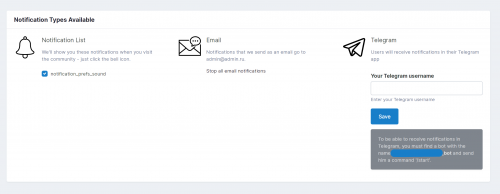 Telegram Notifications application is intended for users to receive instant notifications in Telegram on all Invision Community events: Achievements, Moderation, Mentions & My Content, Followed Content, Messenger, Profile, Newsletter, Event Reminders, File Updates. You can configure which groups will be able to set up notifications in Telegram for themselves, as well as which types of notifications will be enabled / disabled by default.45.00 USD
 -
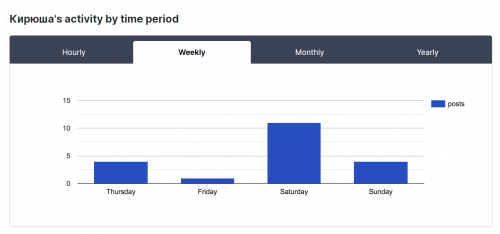 The application collects basic statistics of user activity and displays it in the tables and charts in a separate tab in the profile. You can control which user groups will be able to view the tab with such statistics. Thanks for alexxis for sponsoring this app. Capabilities Block with basic statistics - the number of topics, posts, polls, etc. Block with information displaying the most active time periods - hour, day of the week, month, year. User activity chart by hours, days of the week, months and years. User activity on specific forums, percentage of activity. A section in each forum that collects all posts by a particular user in chronological order.Free
 -
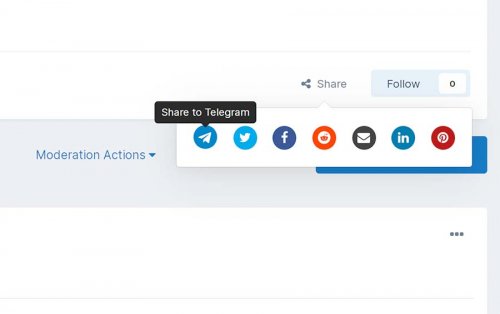 The Share to Telegram app adds a button to the social media services, allowing you to distribute any content from your community to any user on Telegram.Free
 -
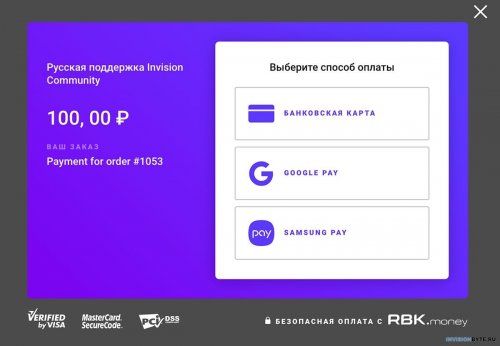 RBK.money is an international platform for all types of payments. Payments in 60 countries. One contract for all payments. Connection in 48 hours. Fraud Payment Protection. Withdrawal in the next day.Free
 -
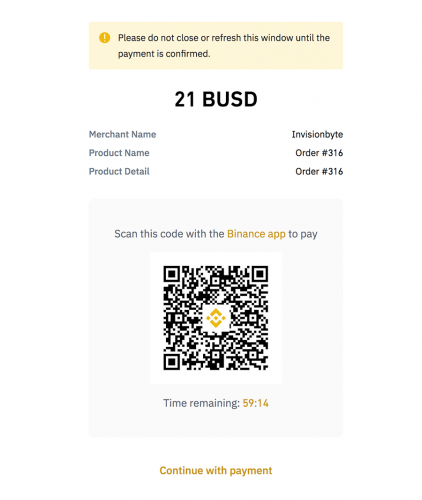 Binance Pay is contactless and secure international cryptocurrency payments on Binance. With this application, your users will be able to pay for products and subscriptions with cryptocurrency through Binance application or Binance site.55.00 USD
 -
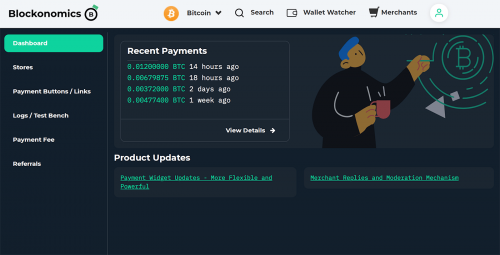 Blockonomics helps you to track and accept Bitcoin payments. Take control of your BTC funds. Join 40,000+ users worldwide.35.00 USD
 -
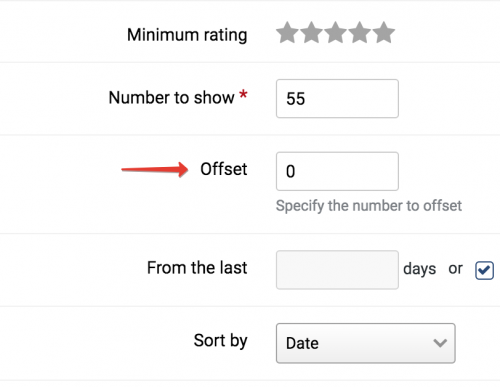 The plugin adds a new setting to the configuration of the record feeds from the database, allowing you to specify the offset when fetching data.Free
 -
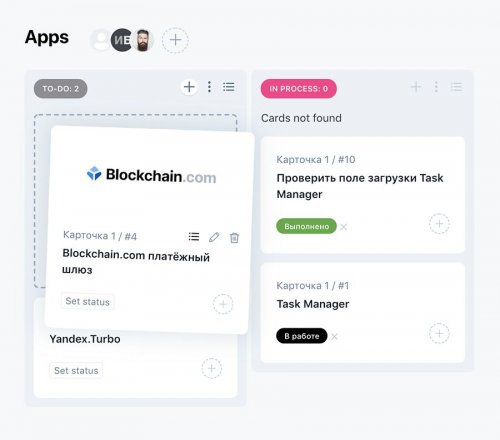 Task Manager for Invision Community. Allows users with access to create boards, columns, and task cards. You can change the status of tasks, as well as assign them to specific users, who will receive a notification after assignment and more. Boards In the ACP, you can create an unlimited number of task boards. Each board can have its own description. The board card contains information on how many columns, tasks and editors it contains. The board has an activity section where all user actions are recorded. Columns Columns of tasks exist in a specific board and contain cards (tasks). Each column has its own name and highlight color. Columns can be swapped on the fly using Drag-and-drop technology. Columns can only be created by board editors, and you can add an unlimited number of them. Task cards The card has its own name, description, background color and cover. Cards can be swapped on the fly using Drag-and-drop technology, as well as transferred between columns. Cards (tasks) can be assigned to other users. After assigning a task, the user will receive a notification. He will also be able to change the status of the card.Free
- 1 review
-
-

-

- 6
-
-
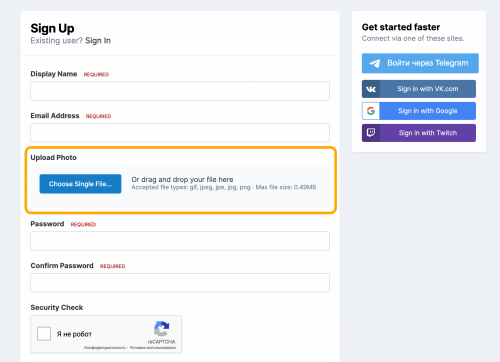 The plugin adds a photo upload form to the new user registration form. Plugin settings: Maximum photo size; Max photo width / height;Free
 -
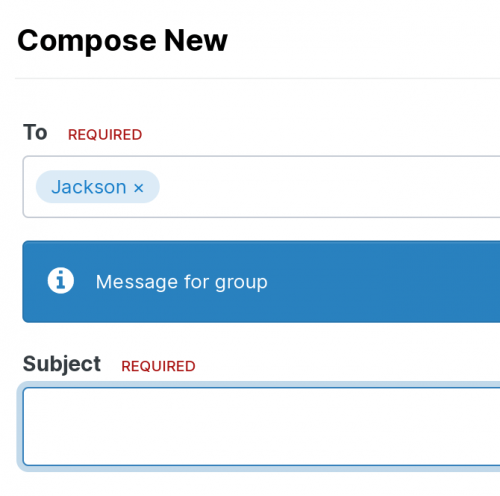 The application adds the ability to set an informational message when certain users or groups are selected as private message recipients. The message will be loaded automatically.Free
 -
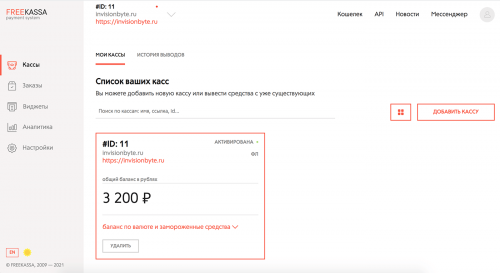 FreeKassa.ru - accepting payment on the community by cards. And also by electronic money, through Apple and Google Pay, and in other ways. Commission from 2.8% - only for successful payments.Free
 -
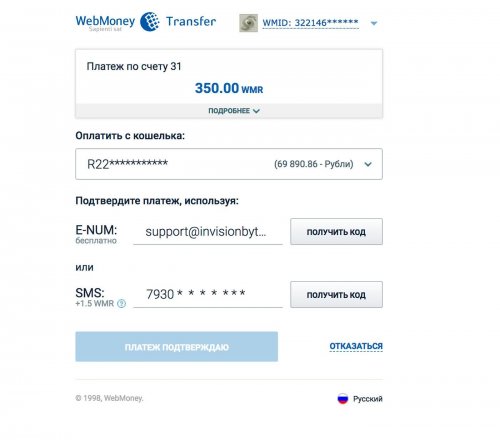 Webmoney Payment Gateway for Invision Community.Free
 -
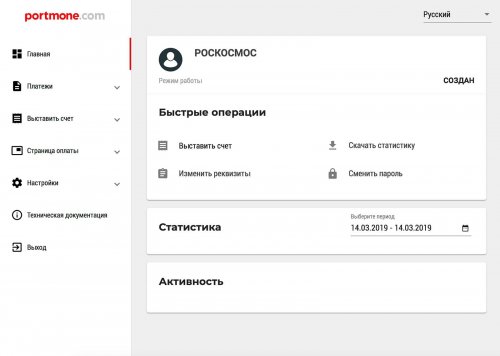 This plugin adds Portmone.com as a payment method to your Invision Community store. Portmone.com can safely, quickly and easily accept VISA and MasterCard in your store in minutes. For the module to work, registration is required in the service. Acceptance of payments in Ukrainian hryvnia.Free
 -
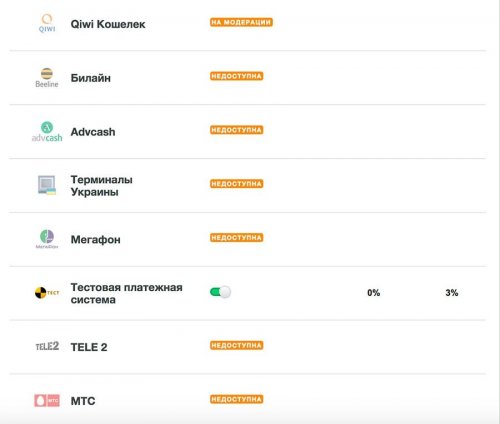 Interkassa is an online payment method aggregator for online businesses: over 5,000 active clients; over 3,000,000 transactions per month; 70+ payment methods; 99% of withdrawal operations take from 2 minutes to 1 day, depending on the withdrawal method; integration with 19 popular CMS and website designers; almost 10 years on the Ukrainian market, more than 90 employees, representative offices in the CIS and Europe.Free
 -
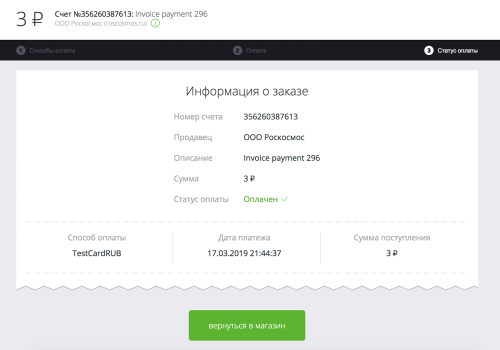 WalletOne is a payment service that has many payment methods, low commissions and a convenient merchant's office.Free
 -
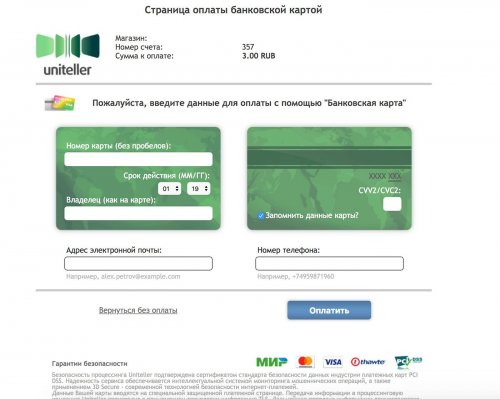 Uniteller Payment Gateway for Invision CommunityFree
 -
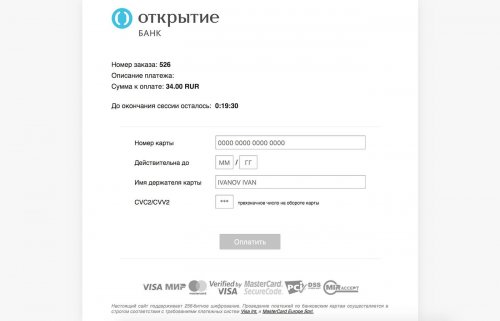 Payment for goods and services in Invision Community using the Internet acquiring of Otkritie Bank. Bank rate - 2.5% of turnover. Having connected, you get a personal account, statistics and analytics, branding of the payment page and other opportunities.Free
 -
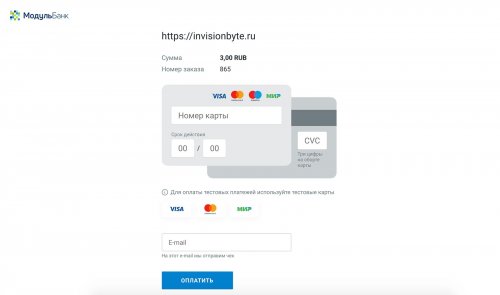 Accepting payments in Invision Community using Internet-acquiring of Modulbank Bank. The bank does not charge a service fee, the commission is only from purchases. If there are no purchases, internet-acquiring is free. The buyer enters the card data on the site, and the purchase is displayed in your personal account.Free
 -
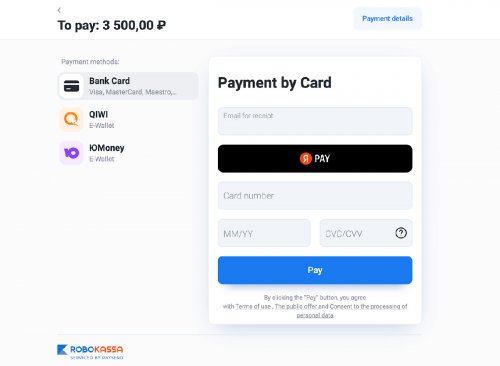 Robokassa Payment Gateway for Invision Community.Free
 -
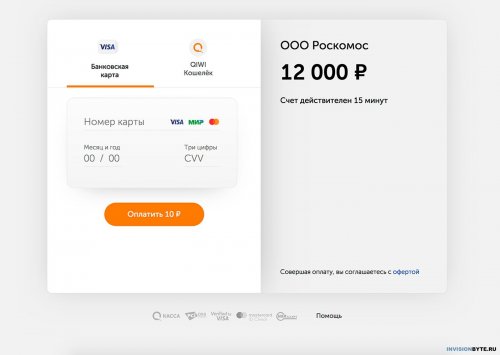 Accepting payments to Invision Community using QIWI Kassa - a popular payment service in CIS countries.Free
 -
Stripe Checkout is a prebuilt, hosted payment page optimized for conversion. Whether you offer one-time purchases, use Checkout to easily and securely accept payments online. Features Stripe Tax to automate tax calculation and collection or define applicable tax rates. Toggle Tax behavior - disabled/inclusive/exclusive. Dispute processing. Refunds/partial refunds supporting. Ability to ban a member after a refund. Information Gateway only works if billing address collection is enabled. Payment methods Getting keys You must register in the merchant's account using the link: https://dashboard.stripe.com/register. After that go to the menu Developers > API keys and copy Publishable key and Secret key. Webhook setup You need to set up a webhook. Go to the webhooks page and click to the button + Add endpoint. Fill in the fields: Endpoint URL: https://YOUR_ADDRESS/index.php?app=stripecheckout&module=webhook&controller=webhook Select events to listen to: checkout.session.async_payment_failed checkout.session.async_payment_succeeded charge.dispute.closed charge.dispute.created charge.refunded checkout.session.completed And click to Add endpoint. After that, you can go to the settings of the created webhook and copy the secret key from the Signing secret setting, which must be specified in the settings in Invision Community. Gateway setup You must install the Stripe Checkout Gateway application from the market. Go to the ACP menu > Commerce > Payments > Settings > Payment Methods tab > Create new button and select Stripe Checkout. Fill the form with the data created earlier in the step above.
-
Stripe Checkout is a prebuilt, hosted payment page optimized for conversion. Whether you offer one-time purchases, use Checkout to easily and securely accept payments online. Features Stripe Tax to automate tax calculation and collection or define applicable tax rates. Toggle Tax behavior - disabled/inclusive/exclusive. Dispute processing. Refunds/partial refunds supporting. Ability to ban a member after a refund. Information Gateway only works if billing address collection is enabled. Payment methods Getting keys You must register in the merchant's account using the link: https://dashboard.stripe.com/register. After that go to the menu Developers > API keys and copy Publishable key and Secret key. Webhook setup You need to set up a webhook. Go to the webhooks page and click to the button + Add endpoint. Fill in the fields: Endpoint URL: https://YOUR_ADDRESS/index.php?app=stripecheckout&module=webhook&controller=webhook Select events to listen to: checkout.session.async_payment_failed checkout.session.async_payment_succeeded charge.dispute.closed charge.dispute.created charge.refunded checkout.session.completed And click to Add endpoint. After that, you can go to the settings of the created webhook and copy the secret key from the Signing secret setting, which must be specified in the settings in Invision Community. Gateway setup You must install the Stripe Checkout Gateway application from the market. Go to the ACP menu > Commerce > Payments > Settings > Payment Methods tab > Create new button and select Stripe Checkout. Fill the form with the data created earlier in the step above. View full article
-
Checkout.com - Process debit and credit card payments online, anywhere and access local payment methods through global payments platform. This gateway is a form of payment on the checkout.com side. To connect the gateway, you need to create a seller account on the site: https://www.checkout.com/get-test-account. Then you can enter to your dashboard. Getting the keys Once you have accessed the dashboard, you must create new API keys. Go to the menu Developers > Keys and click to Create new key button: Type of key: Public API key Allow any processing channel: No Manually select your channel Follow the same steps to create a private key. Webhook setup To install the webhook go to https://dashboard.sandbox.checkout.com/settings/notifications. Click o button + New Notification: Enter any name. Event selection: Gateway > Payment Approved. Webhook url: https://community/index.php?app=checkoutcom&module=webhook&controller=webhook Authorization header Key: Generate key Signature Key: Generate key Gateway setup Install the Checkout.com Payment Gateway app from market. Go to the ACP menu > Commerce > Payments > Settings > Payment Methods tab > Create new button and select Checkout.com. Fill the form with the data created earlier in the steps above. The payment form looks like this:
-
Checkout.com - Process debit and credit card payments online, anywhere and access local payment methods through global payments platform. This gateway is a form of payment on the checkout.com side. To connect the gateway, you need to create a seller account on the site: https://www.checkout.com/get-test-account. Then you can enter to your dashboard. Getting the keys Once you have accessed the dashboard, you must create new API keys. Go to the menu Developers > Keys and click to Create new key button: Type of key: Public API key Allow any processing channel: No Manually select your channel Follow the same steps to create a private key. Webhook setup To install the webhook go to https://dashboard.sandbox.checkout.com/settings/notifications. Click o button + New Notification: Enter any name. Event selection: Gateway > Payment Approved. Webhook url: https://community/index.php?app=checkoutcom&module=webhook&controller=webhook Authorization header Key: Generate key Signature Key: Generate key Gateway setup Install the Checkout.com Payment Gateway app from market. Go to the ACP menu > Commerce > Payments > Settings > Payment Methods tab > Create new button and select Checkout.com. Fill the form with the data created earlier in the steps above. The payment form looks like this: View full article