
Kirill Gromov
Administrators
-
Joined
-
Last visited
Everything posted by Kirill Gromov
-
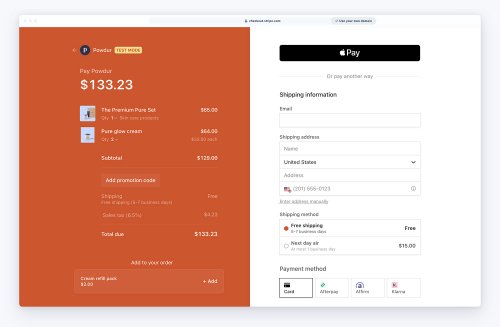 Stripe Checkout is a prebuilt, hosted payment page optimized for conversion. Whether you offer one-time purchases, use Checkout to easily and securely accept payments online. Features Stripe Tax to automate tax calculation and collection or define applicable tax rates. Toggle Tax behavior - disabled/inclusive/exclusive. Dispute processing. Refunds/partial refunds supporting. Ability to ban a member after a refund. Ability to force Stripe to collect a billing address. Ability to select a specific payment method, such as Card, Klarna, Ali Pay, etc. Information Gateway only works if billing address collection is enabled. Differences from Stripe by IPS The entire payment process takes place on the Stripe website, on a special stylized page that you can brand with the style of your community. The client is more confident to enter his card details on the Stripe website. Based on the billing address, the tax amount is automatically calculated. You can change the color scheme, font, rounding of the payment form. Payment methods Card payments Alipay Affirm Afterpay / Clearpay Apple Pay Bacs Direct Debit Bancontact Boleto EPS FPX Giropay Google Pay GrabPay iDEAL Klarna Link OXXO Pre-authorized debits Przelewy24 SEPA Direct Debit Sofort WeChatPay55.00 USD
- 4 comments
- 2 reviews
-
-

- 1
-
-
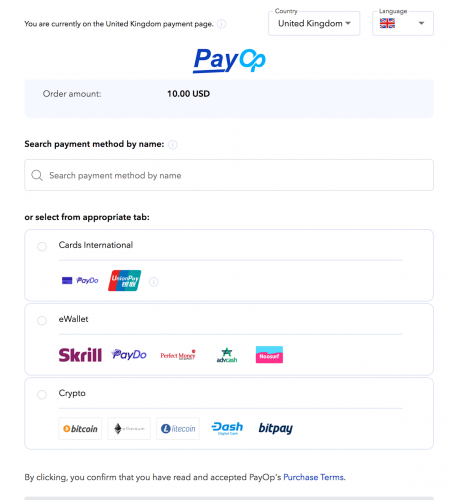 PayOp Payment Gateway for Invision Community. PayOp – more than accepting online payments! Offer your customers the most popular payment methods in just a few clicks. Optimize your business processes with unique payment solutions.25.00 USD
 -
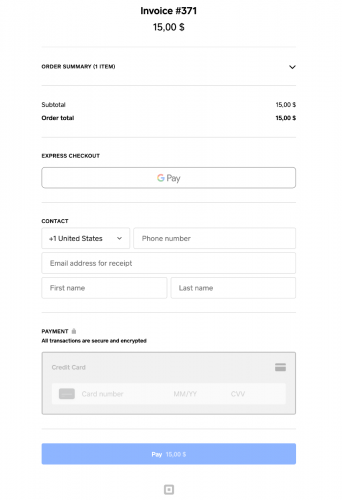 Square Up - accept debit and credit card payments on your community with online payment solutions from Square. You can connect your Square Up account to the Commerce app in Invision Community!45.00 USD
 -
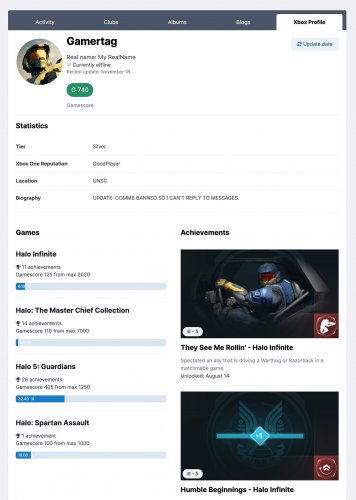 The application Xbox Live Integration allows your users to attach their Xbox Live game data to their profile in Invision Community. Also, users can register and log in to the community using a Xbox Live account. Features Enable Xbox Live pane in posts? Enable Xbox Live pane in user hovercards? Displaying a tab in the profile with gaming information. Displaying achievements in profile. Display Gamescore from the games and the progress of getting it. And many more..55.00 USD
 -
 Avatar Hub - allows the community administrator to upload preset images that community users can choose as their profile photo. Features Upload images by category. Groups with access to choose profile photo from Avatar Hub. Enable photo selection on registration form. Choose selection method: Upload form and/or Avatar Hub.Free
 -
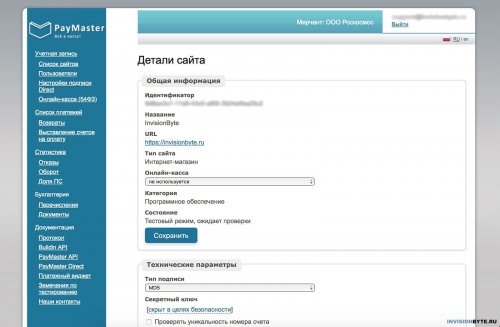 PayMaster allows you to connect any payment system for your online store based on Invision Community.Free
 -
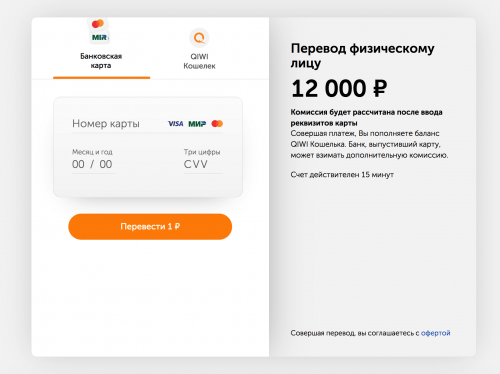 QIWI Wallet Payment Gateway for Commerce in Invision Community. Allows you to set up payment acceptance using the QIWI wallet.Free
 -
 YooMoney Payment Gateway for Invision Community 4.xFree
 -
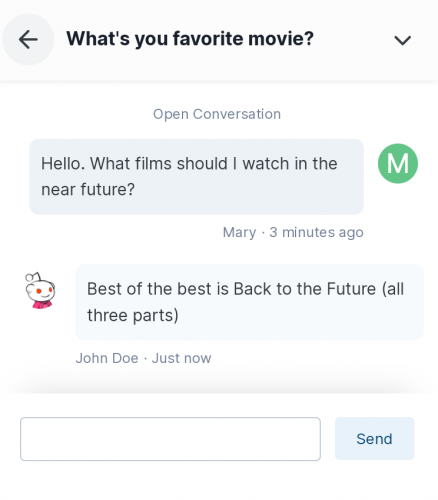 Live Messenger for Invision Community. This app is not an alternative to the standard IPS Messenger, but a handy add-on. Live Messenger was created to relieve communication with other users. Loading and sending new messages is happens without reloading the pages. The main advantage of this application is that you can quickly write or read a personal message on any community page. Features Quick Buttons: create pm, open messenger and show/hide Live Messenger window. Quick access to recent private messages. Quick access to the private conversation. Messages in a minimal design, without distracting design elements. Select the groups that can use Live Messenger. PM read/unread icon. Quick message sending.Free
 -
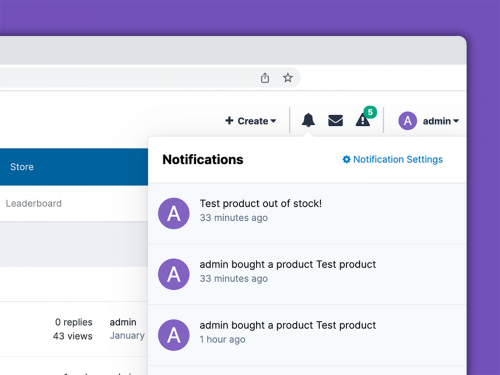 Commerce Notifications allows you to set up notifications in the following cases: When a certain (or all) product is out of stock. When a certain (or all) product low in stock. Someone applied a coupon code. Some product was purchased. Created a new support request. Received a new support request response. The application has flexible settings, so you can receive notifications only for certain products or deliver notifications to certain groups or specified users. This application is compatible with Telegram Notifications.45.00 USD
 -
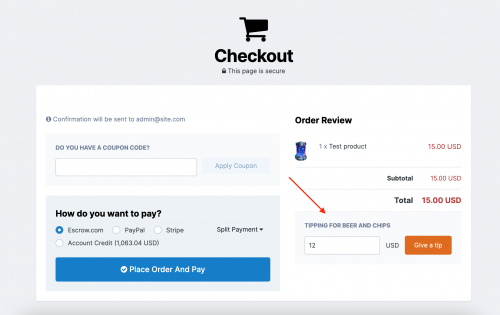 Checkout Tips adds the functionality of adding a tip on the checkout page. For the application to work, you must have the Commerce application installed. Checkout Tips helps community owners earn more from sales in Commerce! You can set up groups that can tip, provide a short description for the tip form, and keep track of all tips received in the ACP.45.00 USD
 -
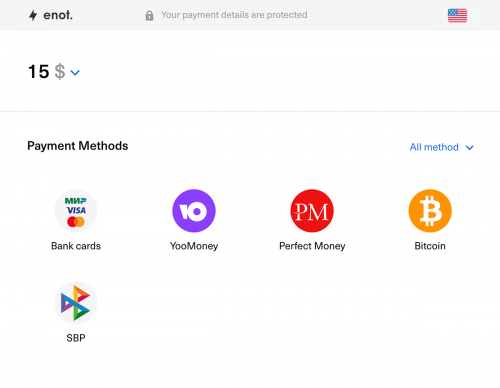 Enot.io - accept payments online, available for individuals and legal entities.35.00 USD
 -
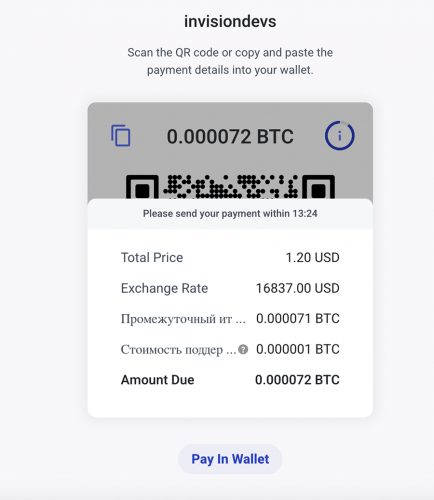 BitPay - accept Bitcoin and other cryptocurrencies, gain new customers, and avoid the cost of high fees and chargebacks. From setup to settlement, BitPay makes accepting these payments easy. How it works Invoice. BitPay displays the invoice for your customer. Payment. Your customer pays the BitPay invoice at a locked-in exchange rate. Conversion. BitPay converts the customer’s payment into your local currency. Transfer. BitPay initiates a bank settlement to you the next business day.45.00 USD
 -
 MultiSafepay - Easily accept all popular online payments methods like iDEAL, AMEX, VISA, Apple Pay.35.00 USD
 -
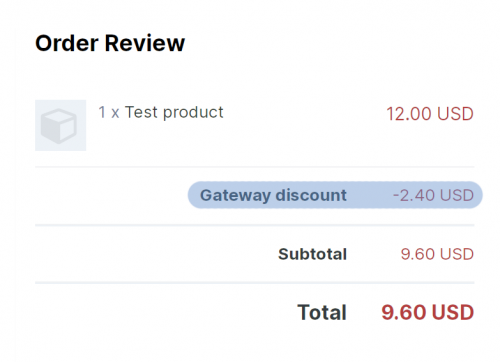 This application allows you to set a discount for each payment method. For example, you want to prioritize the payment method with cryptocurrency, then you can make a 10% discount on the total invoice when customer select the appropriate payment method. Discount data is loaded automatically (via ajax). App settings Select type: Discount or Fee. Discount type: percentage or specified amount. Discount amount. Products. You can select the products for which the discount will be applied. Apply a discount for the entire amount or for selected products. The setting is effective if the discount type is selected - percent. User groups who will be able to apply discount.35.00 USD
 -
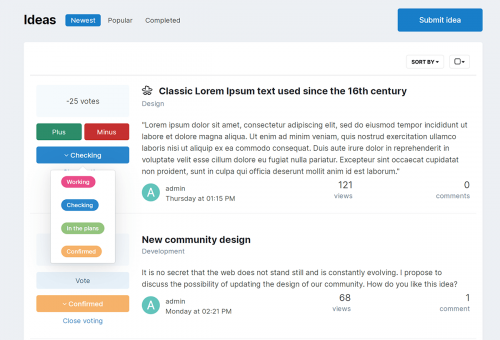 The Ideas app for Invision Community allows your users to add ideas to various categories. Any users can vote to promote the ideas they like. Administrators can mark ideas as completed. Features: Creating categories. Custom fields in various categories. Displaying fields in two different places: below the title and below the description. Enable / disable the display of the sidebar with categories when viewing an idea. Indexpage Tabs: newest, popular and completed Ideas. Ajax voting for ideas. The ability for administrators to mark ideas as completed. Commenting on ideas.Free
 -
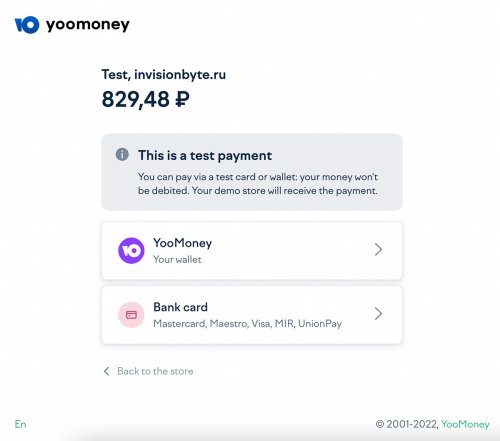 YooKassa Payment Gateway for Invision Community! YooKassa works only with companies, for individual use - YooMoney. Payment methods in YooKassa: Bank cards. American express. Electronic money. Cash. Internet banking. Phone balance. B2B payments.Free
 -
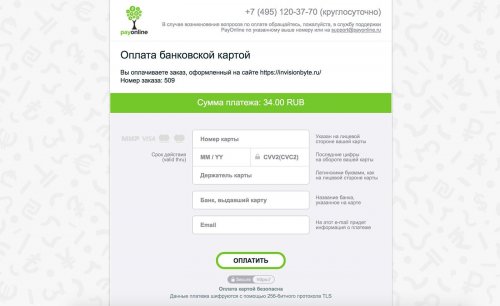 By connecting to PayOnline, you can accept payments on your site using popular means of payment.Free
 -
 The application will add the ability to set up authorization on your community using the Telegram bot. To configure you need to create a bot and assign community url address.Free
 -
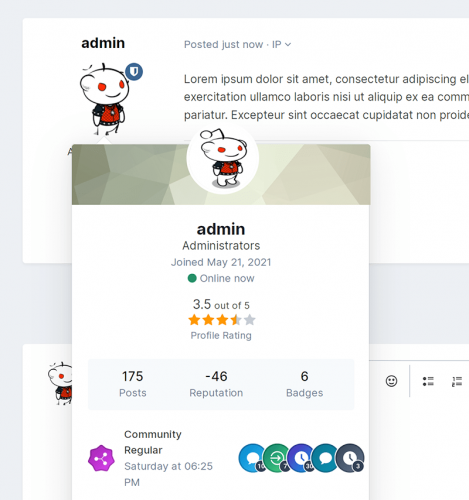 Profile Reviews app allows your users to leave rated reviews on other users' profiles. This forms the average rating of the profile from all the reviews in it. Profile reviews can be commented on. Settings Groups that can add reviews. The number of comments per page. Whether or not to show the rating in the profile hovercards. Whether or not to show rating in forum posts. Widgets Top popular profiles. The widget will show the profile with the highest rating based on reviews. Latest reviews. A feed of reviews sorted by date added.Free
 -
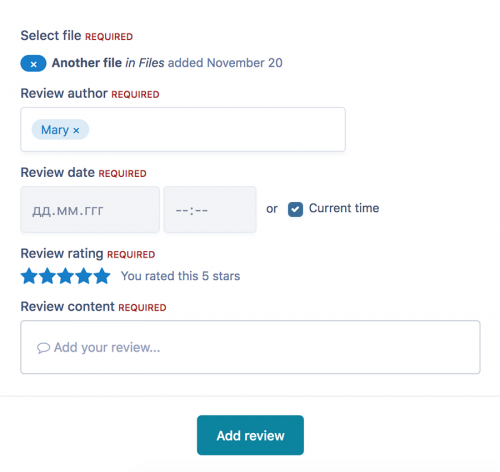 This application cooperates all the reviews of your community in one section of the admin center, where it is much more convenient to moderate and edit them. Apps supported Pages database records. Downloads file. Products from Commerce. Calendars. Gallery Images. Gallery Albums. Reviews are sorted by date, most recent to earliest. In ACP you can Add a new review. Change any review. Change adding date. Change review author. Change the rating of the review. Follow the link to the review. Delete review. Sort reviews by various parameters.35.00 USD
 -
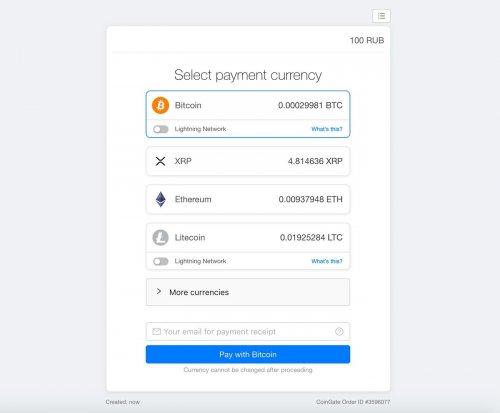 CoinGate Payment Gateway for Invision Community. Buy, Sell & Accept Cryptocurrency. Buy Bitcoin, Litecoin, Ethereum and other cryptocurrencies in Europe and Worldwide. Accepting Bitcoin Payments on Any Stores.Free
 -
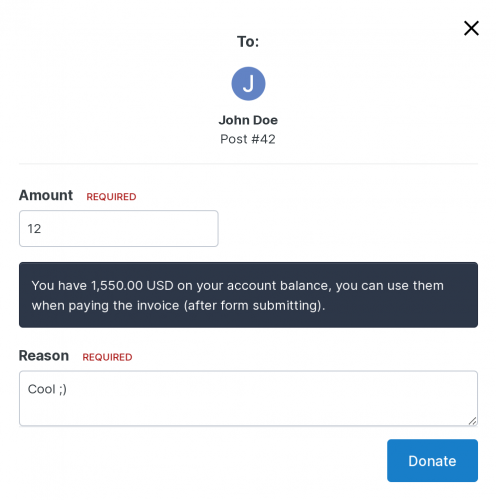 The application will allow your users to donate for posts indicating an arbitrary amount and reason for donating. You can select groups whose users will be able to donate or accept donations. Specify the donor list limit when viewing a topic. Each donation post displays the total amount of donations by currency. Make the reason field required. You can display the balance in posts and/or in the userBar. Users can control the display of the balance themselves in the settings of their account. The author of the post will receive a notification about the new donation. Commerce integration You can specify the amount of the commission that will be charged. You can donate in any currency and any payment gateways that exist and are configured in the Commerce application. Widgets Currently, you can place two widgets on your pages: Top donors. The widget will show users who donated the most for posts for a certain period of time (week, month, year, or all time). Latest donations. The widget will show the donor, the author of the post, the date and amount of the donation. For the application to work, you must have a Commerce installed application.Free
 -
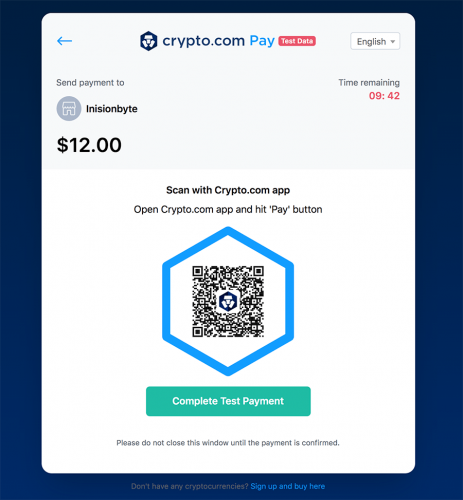 Start accepting crypto payments today - Crypto.com Payment Gateway for Invision Community. Tap into the global cryptocurrency economy and start accepting Bitcoin and other popular cryptocurrencies on your community.Free
 -
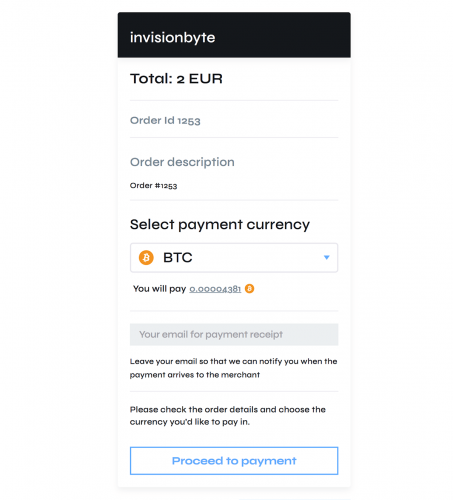 NOWPayments is a non-custodial cryptocurrency payment processing platform. Accept payments in a wide range of cryptos and get them instantly converted into a coin of your choice and sent to your wallet. Keeping it simple – no excess.45.00 USD